Kindle Scribe guide
How to convert PDFs to KFX for Kindle Scribe
To convert a PDF to KFX for Kindle Scribe, you have three realistic options: Amazon's Send-to-Kindle, Calibre with the KFX Output plugin, or a web service like leafbind. Each handles the same file differently — and only one of them gets multi-column layouts, footnotes, and heading structure right. This guide shows what each one actually produces.
By Joe Fowler — Updated May 15, 2026
If you bought a Kindle Scribe expecting to use it for serious document reading — research papers, academic monographs, conference proceedings — you have probably already tried Send-to-Kindle. It works in the narrow sense: the file arrives on the device and can be opened. It works less well in the sense of being readable.
The specific problems are consistent. Multi-column papers become interleaved text streams — sentences from the left column and right column alternating line by line, because the conversion reads the page left-to-right without recognizing the column boundary. Footnotes vanish from their citation positions or reappear, disconnected, at the document end. Section headings flatten to plain paragraphs, taking the table of contents with them. On a device designed for focused long-form reading, these are not cosmetic issues — they turn a structured academic document into something closer to an OCR dump.
This guide covers the three realistic options for getting a PDF onto a Kindle Scribe in a form that reads correctly: Amazon’s own Send-to-Kindle service, Calibre with the KFX Output plugin, and leafbind. Each is assessed with its actual failure modes described specifically — not to push a recommendation, but because knowing the tradeoffs lets you pick the right tool for your actual document type.
The Send-to-Kindle quality problem
Amazon’s Send-to-Kindle service is designed for convenience, not fidelity. Emails arrive at your Kindle personal document address and appear in your library within minutes, converted to Kindle format. For a simple PDF — one column, no footnotes, section headings with obvious font-size differences — the results are usable. For academic and technical PDFs, the failure modes are structural and predictable.
Multi-column text
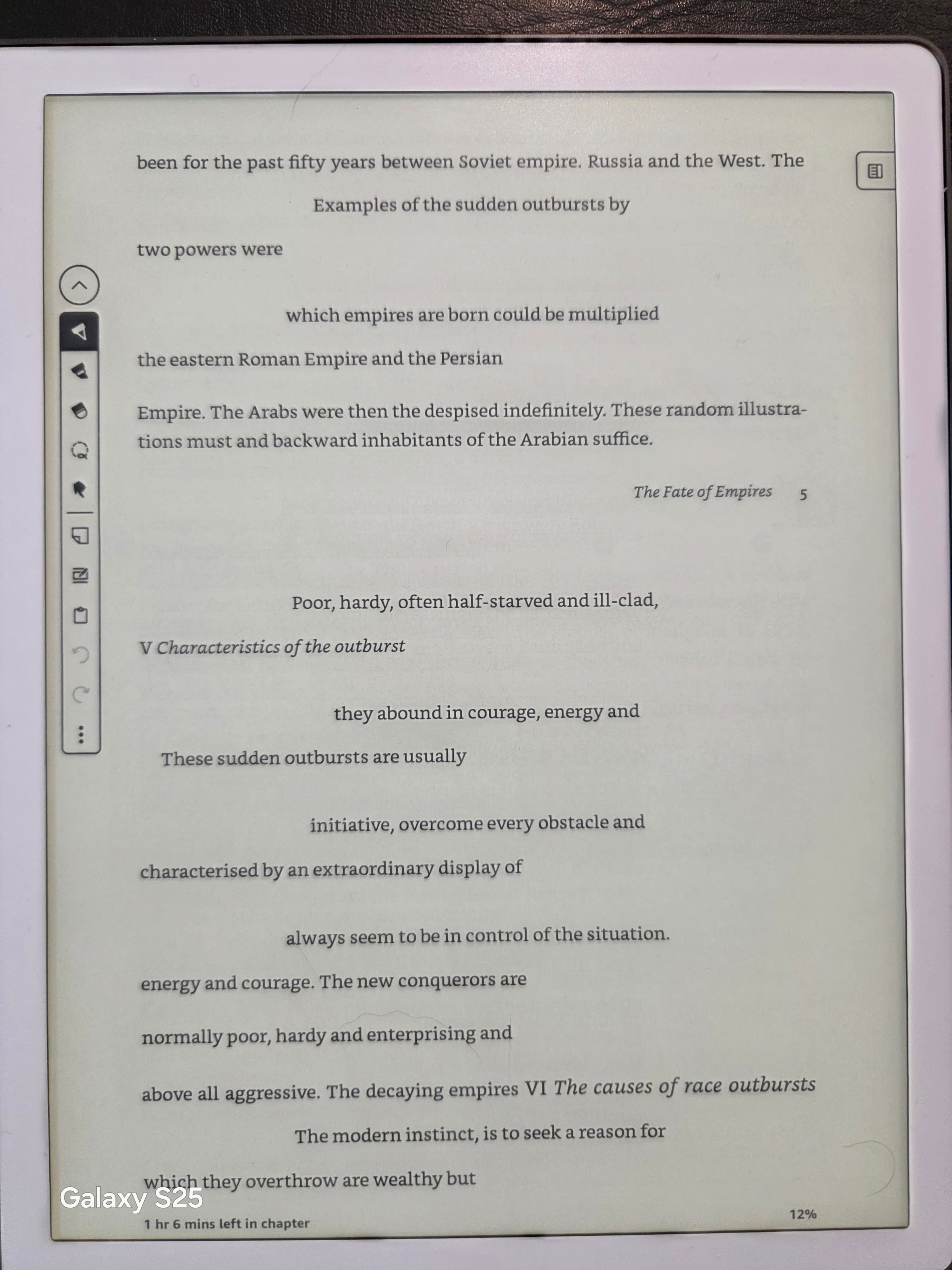
Journal articles, IEEE papers, conference proceedings, and most academic papers printed in US letter or A4 format use a two-column layout. This is a typesetting convention that makes efficient use of the page area at standard point sizes. The problem is that Amazon’s conversion reads the PDF in the internal text stream order — which interleaves both columns line by line as they appear on the page.
A concrete example: an economics paper formatted in two columns. Left column, line 1: “The monetary transmission mechanism operates through...” Right column, line 1: “methodology, we regress inflation on lagged output...” After conversion, the Kindle document reads: “The monetary transmission mechanism operates through methodology, we regress inflation on lagged output...” Both sentences appear immediately after each other because they occupied the same horizontal strip on the original page. Every line of every two-column page is interleaved this way.
Footnotes
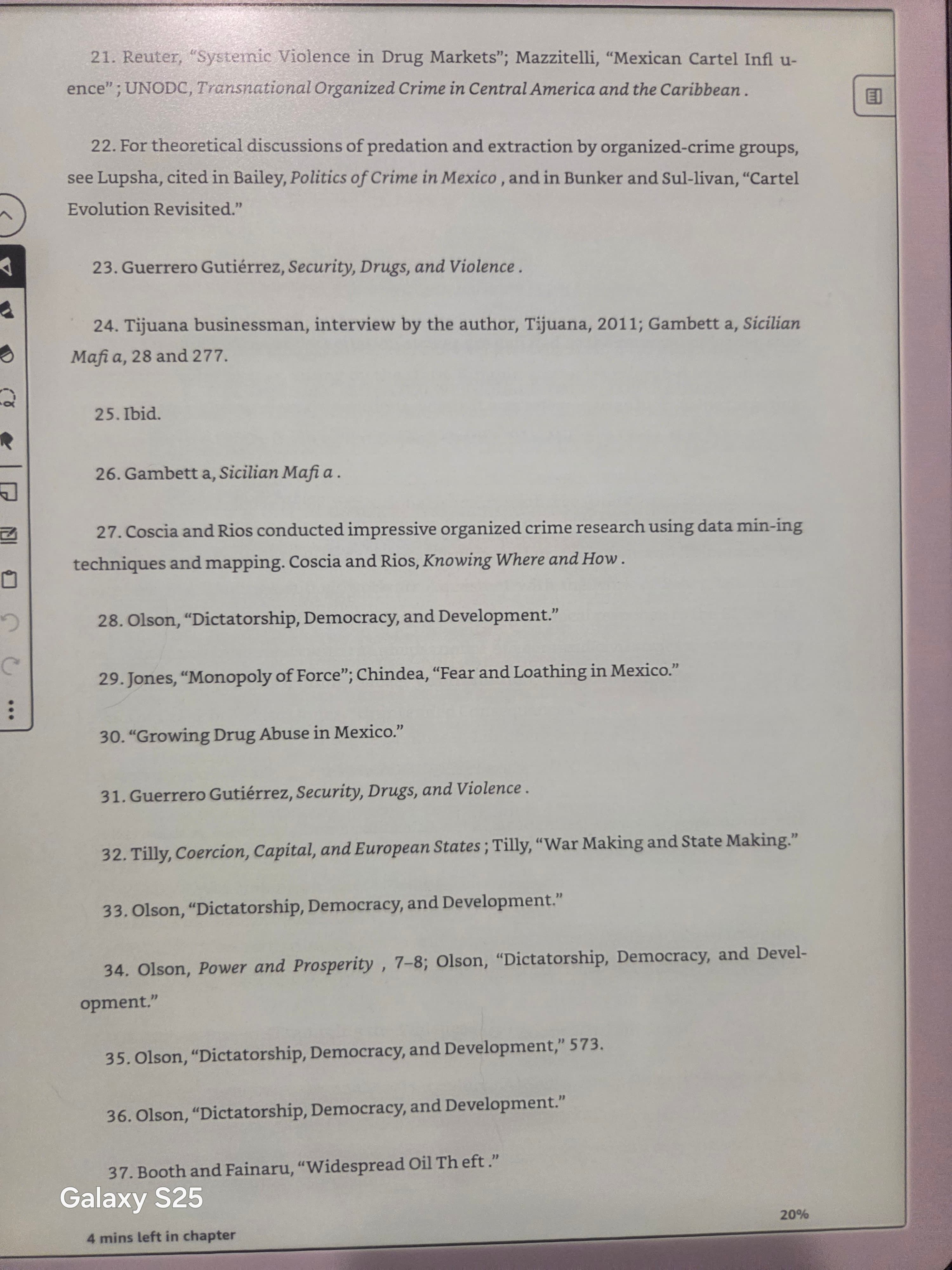
Academic writing uses footnotes heavily. In PDF, a footnote is positioned at the bottom of a physical page — a positional artifact of the print layout model. When the page model is stripped to create a reflowable Kindle document, footnotes lose their anchor to the text they annotate. Amazon’s service either appends all footnotes to the end of the document (accessible but unlinked) or drops them entirely.
There are no tappable links. A superscript “14” in the body text is just text characters — it does not navigate to footnote 14. To check a footnote, you navigate manually to the back of the document, find the footnote by scanning the appended list, then navigate back to your reading position. For a paper with 40-60 footnotes, this is impractical.
Heading detection and chapter navigation
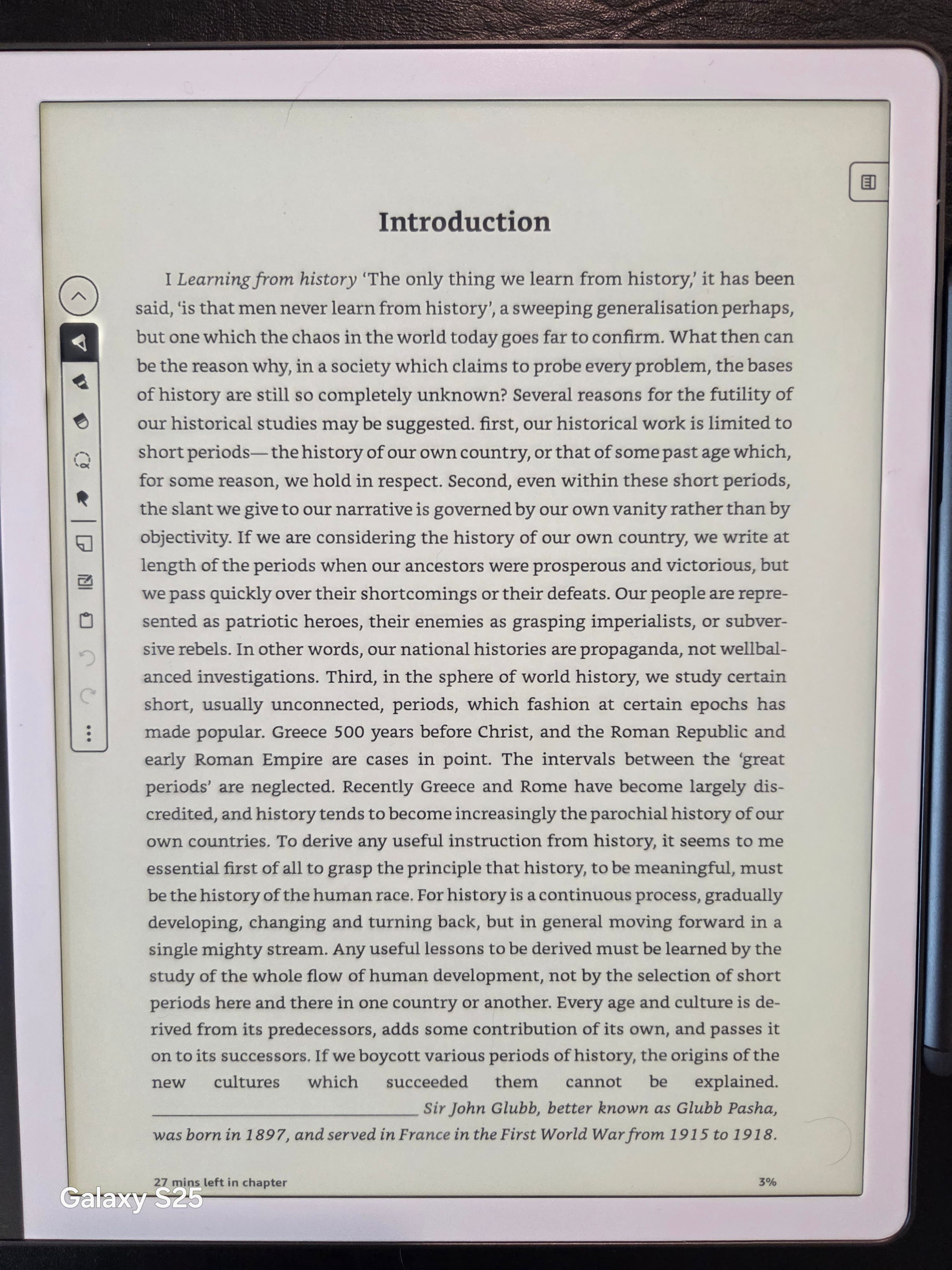
PDF is a visual format, not a semantic one. A section heading is text that the author formatted in a larger size — the format itself does not record “this is a heading.” Amazon’s conversion attempts to classify headings by font properties, but the heuristics miss frequently in condensed academic layouts where body text is 10pt and section headings are 12pt or 13pt. Missed headings mean no Kindle chapter list. The table of contents shows the document title and nothing else. The Kindle Scribe’s chapter navigation feature — the progress bar at the bottom of the screen, swipe gestures to jump between chapters — works only when chapters are detected.
Scanned documents
Many academic papers available through library archives are scanned images rather than text PDFs — common for older publications from JSTOR, HathiTrust, and similar repositories. Send-to-Kindle converts the scanned image without running OCR. The result is a non-reflowable document: text you can zoom but not resize by changing your Kindle font preference. On the Kindle Scribe’s 10.2-inch screen, zooming a scanned page typically means horizontal scrolling — a reading experience worse than a laptop screen.
Calibre with the KFX Output plugin — the technical option
Calibre is the most capable open-source ebook manager, and with the KFX Output plugin installed, it can produce native KFX files from a range of input formats. For many use cases, it is the correct tool.
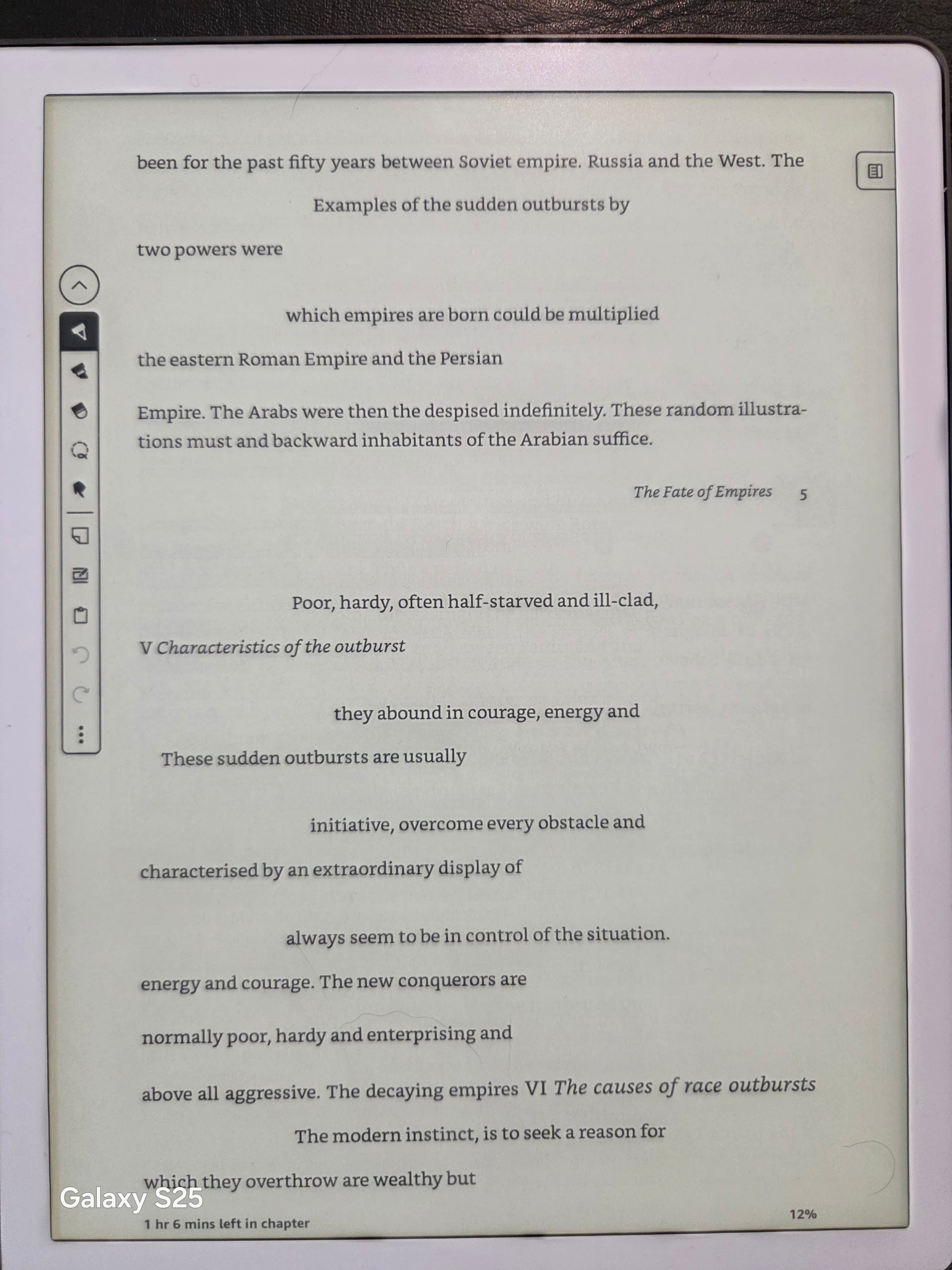
The calibration for PDF specifically is important to understand. Calibre’s own manual (v9.8.0) states directly: “Complex, multi-column, and image-based documents are not supported.” This is not a temporary limitation or a community-maintained FAQ entry — it is in the official documentation, and it reflects a genuine architectural constraint in how Calibre reads PDF files. The column-interleaving problem described in the previous section applies equally to Calibre as to Send-to-Kindle. For a two-column journal article, Calibre and Send-to-Kindle produce structurally similar output.
For single-column PDFs — a novel, a business book, most non-fiction prose — Calibre performs well. The PDF extraction produces a clean EPUB, the heading heuristics work for simple font hierarchies, and the KFX Output plugin handles the EPUB → KFX step reliably. If your document is structurally simple, Calibre is a viable free option.
The setup requirement
Producing KFX via Calibre requires: installing Calibre itself, installing the KFX Output plugin (available in Calibre’s plugin repository), downloading and installing the KFX Support Files (a separate package), and registering a Kindle device with Calibre so the necessary support infrastructure is in place. This is a one-time setup, but it involves several steps that assume comfort with desktop software installation and file management. For a user who wants to convert one paper to read on a Kindle Scribe this afternoon, the setup cost may exceed the benefit.
No automated quality check
After conversion, there is no feedback mechanism to verify that headings were detected correctly, that footnotes survived the conversion, or that the table of contents has the expected structure. You sideload the file to your device, open it, and find out. If something is wrong — a heading misclassified, a footnote block appended unlinked — you adjust Calibre settings and repeat. The iteration loop is manual.
For a developer or technically inclined user converting a small set of well-structured single-column PDFs, Calibre is reasonable. For converting research papers with two-column layouts, extensive footnotes, or OCR requirements, the architectural limitation documented in the official manual applies directly.
The leafbind approach
leafbind addresses the PDF-to-KFX problem at the extraction layer — the step where quality is actually determined — rather than at the EPUB-to-KFX step where most converters spend their effort.
Column detection
Every text object in a PDF has an x/y coordinate: the position on the page where the text was rendered. The extraction pipeline uses those coordinates to cluster text objects into columns before reading them. For a standard two-column academic paper, the pipeline identifies the column boundary from the horizontal coordinate distribution, then reads each column top-to-bottom in sequence. The left column is extracted as a complete unit; the right column follows. No interleaving.
For more complex layouts — a full-width header above two columns, or a sidebar alongside single-column text — the coordinate clustering applies recursively until each text block is identified and ordered. The result matches what you would read if you were tracing the text manually on the physical page.
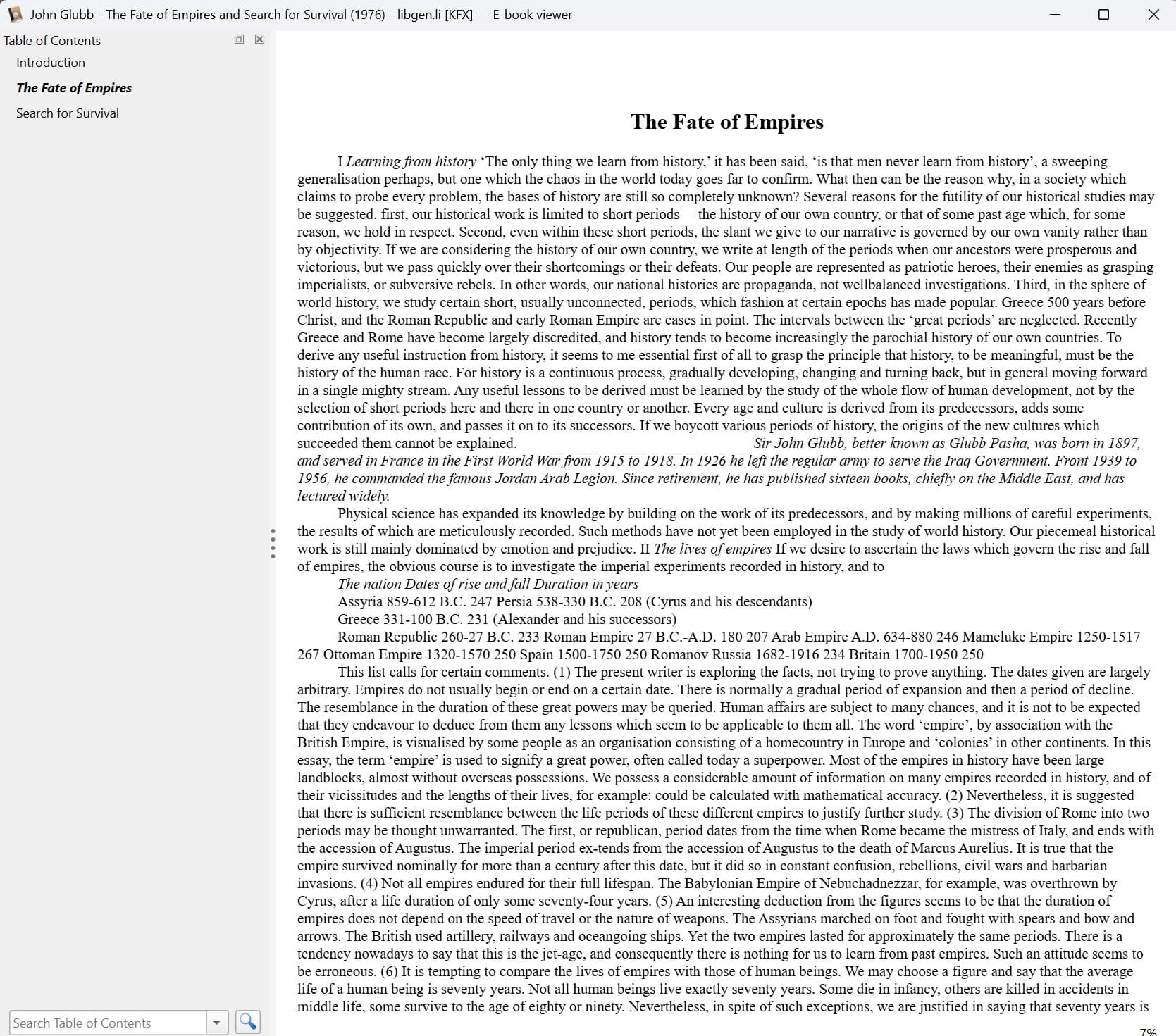
Heading classification
The pipeline computes a font-size histogram across all text objects in the document. The peak of that histogram represents the body-text size — typically 10pt or 11pt in an academic paper. Text runs that exceed the body-text mode by a measurable threshold are classified as headings. The threshold is applied to the rendered font size, not the font name or weight, which makes it robust to the font-substitution artifacts common in older PDFs.
Headings classified as h2 appear in the Kindle’s table of contents as chapters. Headings classified as h3 appear as sections within chapters. The navigable chapter list that Kindle readers expect from commercial ebooks is present in the converted KFX file.
Footnote linking
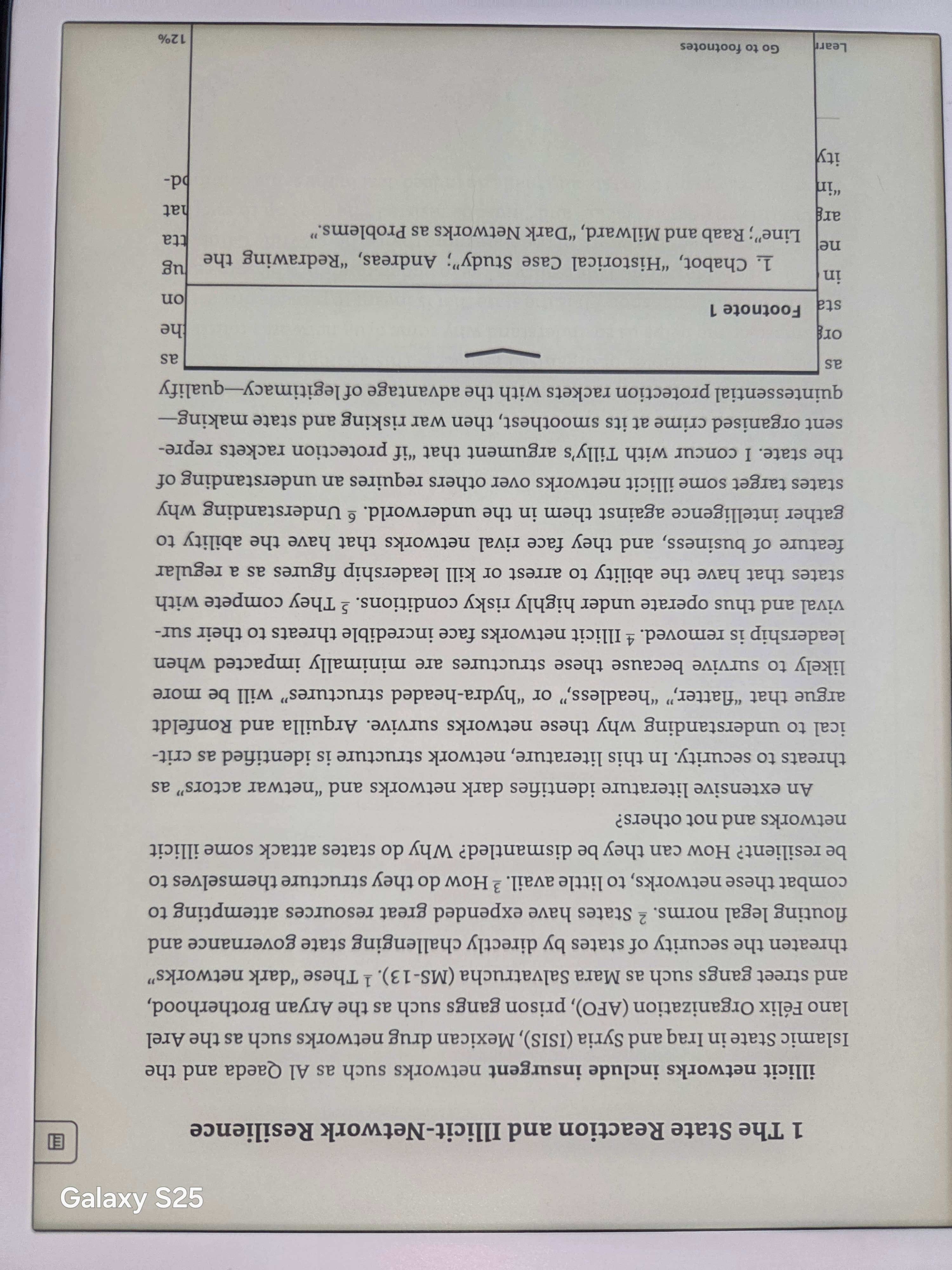
The pipeline identifies footnote markers in body text — superscript numerics, symbolic markers (* and †), and styled references — by their rendered position above the text baseline and their smaller-than-body-text font size. It then locates the corresponding footnote body at the bottom of the page region, matching markers by number or symbol in order of appearance. Each matched pair generates a linked anchor in the EPUB output: one at the in-text citation, one at the footnote body. In the KFX file, those links become Kindle’s native footnote popups. Tapping a superscript in body text opens the footnote as an overlay; tapping elsewhere closes it and returns to the reading position.
OCR for scanned documents
When the pipeline encounters a scanned page — one where the PDF contains an image object rather than text — it routes the page through an OCR pass powered by Gemini 2.0 Flash. The OCR output is text, so heading classification and footnote detection run on it as they would on a native-text page. Clean black-and-white scans of academic papers produce accurate OCR; heavily degraded historical documents produce more artifacts, flagged in the conversion report.
Visual quality verification
After the KFX file is produced, the pipeline renders it back to images via Calibre and runs an automated quality check. The check confirms heading hierarchy, table of contents structure, and footnote link integrity. If the check detects an anomaly, it surfaces in the conversion report before you download the file.
KFX output is a premium feature — the multi-stage pipeline requires computational resources beyond what the free tier supports. Free tier conversions produce EPUB. Pricing details →
See it in practice
Side-by-side screenshots comparing Calibre output against leafbind output for the same academic PDF — columns, footnotes, and headings.
View quality comparison →Step-by-step: convert a PDF and read it on Kindle Scribe
These steps assume a PDF ready to convert and a Kindle Scribe accessible via USB or on the same Wi-Fi network.
- 1
Upload your PDF
Navigate to leafbind.io/convert/pdf-to-kfx. Drag your PDF onto the upload area or click to open the file browser. Files up to 20 MB are supported on the free tier; premium plans support up to 100 MB. The upload is encrypted in transit. The conversion starts automatically — no settings to configure before upload; the pipeline detects document structure and applies the correct extraction path.
- 2
Select KFX as the output format
After upload, the format selector defaults to EPUB. Change it to KFX. If you have not unlocked a premium conversion, you will be prompted to do so — KFX is a premium output format. You can complete the unlock without creating an account; a single-conversion credit is the minimum purchase.
- 3
Monitor the conversion stages
The conversion report shows progress across four pipeline stages: extraction, structure analysis, heading classification, and KFX output. For a 40-page text-native academic paper, total conversion time is typically 15–30 seconds. For a 200-page scanned document routed through OCR, expect 2–5 minutes.
- 4
Review the conversion report
When conversion completes, the report shows the number of headings detected, the table of contents structure, and whether any pages required the OCR fallback. If heading detection found fewer headings than expected, the report flags it. For most academic papers and technical documents, the report shows no issues.
- 5
Download the KFX file
Click the download button. The file is a .kfx container, compatible with all Kindle devices released since 2018, including all Kindle Scribe hardware.
- 6
Side-load to your Kindle Scribe
Via USB: connect the Scribe with a USB-C cable, open the Documents folder on the device, copy the KFX file in, then eject. Via email: attach the KFX file to an email and send it to your Kindle personal document address (Kindle Settings → Your Account → Send-to-Kindle). The file appears in your library under Books within a minute or two.
- 7
Verify on-device
Open the document on the Scribe. Confirm: does the table of contents list chapters? (Swipe from the left edge or tap the menu.) Are footnote superscripts tappable links? (Tap one — a popup should appear with the footnote text.) Does the document reflow at your current font size? If all three are correct, the conversion worked as intended.
Edge cases worth knowing
Scanned academic papers
Papers scanned from physical journals are common in university library databases. The pipeline routes them through OCR, which handles clean black-and-white scans well. For color scans or documents with complex embedded images (microscopy, charts), the text extraction is accurate but embedded images are placed as inline block images rather than floating figures. The text reads correctly; image positioning is approximate.
Papers with extensive figures
Academic papers often include numbered figures with captions referenced from the body. Figures are extracted and placed inline at approximately the position they occupied on the original page. Figure captions are preserved as regular text. The link between an in-text "see Figure 3" and the actual figure is not generated — this requires semantic understanding of figure references that the pipeline does not currently attempt.
Books with endnotes rather than footnotes
Many academic books collect notes at the back rather than at the bottom of each page. The pipeline detects these as a separate block of text in a consistent format — numbered list, set apart in a distinct section — and links them to their in-text citations by number matching. The behavior is the same as for footnotes: tapping the superscript in body text opens the endnote as a Kindle popup.
Very long documents
Heading detection and footnote linking scale linearly with document length. A 600-page academic monograph takes longer than a 40-page paper but produces the same quality. The main practical consideration is that very long scanned documents will take several minutes for the OCR pass.
Multi-column papers in landscape orientation
Some technical reports and older journal formats use landscape-oriented pages with three or four columns. The coordinate-based extraction handles these correctly — the column detection reads any number of columns as long as they have distinct horizontal bounding boxes. The column count is determined by the document, not hardcoded.
How to actually send your converted KFX to the Kindle Scribe
After downloading your KFX file from leafbind, two transfer paths get it onto the Scribe: the Send-to-Kindle email and a USB cable. Both work with KFX — email is more convenient, USB is more reliable.
Method 1 — Send-to-Kindle email
Attach the KFX file to an email and send it to your Kindle personal document address — usually [email protected], found under Kindle Settings → Your Account → Send-to-Kindle Email Address. The email must come from an address on your approved sender list — Amazon silently drops messages from unrecognized senders with no bounce notice.
Amazon’s file size limit for Send-to-Kindle email attachments is 200 MB. A typical 40-page academic paper KFX file is well under 5 MB; book-length documents converted on the premium tier can approach 50 MB. For files above 200 MB, the USB method is required.
After sending, Amazon delivers a confirmation email within a few minutes and the file appears in your Kindle library. Pull to refresh on the Scribe if it doesn’t appear automatically.
Method 2 — USB cable transfer
The Kindle Scribe connects via USB-C. Plug it into your computer — it mounts as a drive on Windows (File Explorer) and macOS (Finder). Navigate to the documents/ folder on the device, copy the KFX file in, then eject before unplugging.
The file appears in your Kindle library within seconds of unplugging. No internet connection required, no sender-list check, no size cap beyond the Scribe’s available storage (16 GB or 64 GB depending on model).
USB is the deterministic fallback: if the email method fails for any reason, USB always works.
Common transfer failures
File doesn’t appear after emailing — the most common cause is that the sending address is not on the approved-sender list. Amazon drops those emails silently. The Send-to-Kindle troubleshooting guide covers every failure mode in detail, including sender-list setup and what to check when delivery just stops working.
File appears but won’t open— usually a format mismatch. KFX is supported on all Scribe hardware and on Kindles released since 2018. If you’re on an older device, use EPUB output from the free tier instead.
Email confirmation never arrives— Amazon’s service occasionally has delivery delays. Wait 10 minutes, check the service status, then switch to USB if the file still hasn’t appeared. For all methods for sending files to any Kindle device — including the web uploader and mobile app — see the transfer-methods guide.
Frequently asked questions
Does leafbind work on Mac, Windows, and Linux?
Yes. leafbind is a web service — there is no software to install. Open any browser on any operating system, upload your PDF, and download the converted file. The conversion runs on leafbind's servers.
Why are footnotes tappable in leafbind's output but not in Send-to-Kindle's?
Footnote links have to be explicitly generated. In a native ebook, the author's editing software creates the links at export time. PDF-to-ebook conversion does not produce links automatically — the converter has to detect the superscript markers, match each marker to its footnote body, and write anchor pairs into the EPUB. Send-to-Kindle does not do this step. leafbind does: the pipeline identifies markers in body text, matches them to the corresponding footnote blocks at the bottom of each page region, and writes the linked pairs explicitly. In the KFX output, those links become Kindle's native footnote popups.
Can I use Calibre to convert a multi-column PDF to KFX for Kindle Scribe?
Calibre's manual (v9.8.0) states directly: "Complex, multi-column, and image-based documents are not supported." This is a documented architectural limitation, not a temporary bug. For single-column PDFs, Calibre with the KFX Output plugin works well. For two-column academic papers and conference proceedings, the column interleaving problem applies — the same problem as Send-to-Kindle.
Can I convert a PDF without an internet connection?
Not with leafbind — it is a web service that requires a connection. For offline conversion, Calibre is the correct choice: install it on your desktop, install the KFX Output plugin and KFX Support Files, and convert locally. The tradeoff is Calibre's documented limitation on complex layouts.
How large can the PDF be?
Free tier: up to 20 MB per file, 3 conversions per day. Premium tier: up to 100 MB per file. Most academic papers and book chapters are well under 20 MB; book-length PDF scans often exceed it.
Does leafbind handle scanned PDFs?
Yes. When the pipeline encounters a scanned page — one where the PDF contains an image rather than text objects — it routes the page through an OCR pass powered by Gemini 2.0 Flash. The OCR output is text, so heading classification and footnote detection run on it as they would on a native-text page. Clean black-and-white scans of academic papers produce accurate OCR; heavily degraded historical documents produce more artifacts, flagged in the conversion report.
Which Kindle devices support KFX format?
KFX is supported on all Kindle devices released from 2018 onward: Paperwhite (10th generation and later), basic Kindle (10th generation and later), Oasis (9th generation and later), and all Kindle Scribe hardware. For older devices, choose EPUB output — the free tier produces EPUB, which works on all Kindle devices but without the KFX-specific typography improvements.
How do I send a PDF to my Kindle Scribe?
The most direct path is: upload your PDF to leafbind to convert it to KFX, then either email the KFX file to your Kindle personal document address (found in Kindle Settings → Your Account → Send-to-Kindle Email Address) or transfer it via USB cable by copying it into the documents/ folder on the Scribe. The email method is more convenient; USB is more reliable. Both methods are covered in the transfer section of this guide.
Why does my PDF look wrong on the Kindle Scribe after sending?
Send-to-Kindle and Calibre both process the PDF text stream without column-order awareness. For multi-column academic papers, this causes the two columns to interleave line by line in the Kindle output — reading as scrambled text rather than a coherent paragraph. Footnotes are either dropped or appended unlinked at the document end. Converting with leafbind first (PDF → KFX) corrects both problems: coordinate-based extraction reads columns in the correct order, and the pipeline rewrites footnote markers as tappable Kindle popup links before you transfer the file.
Can I send a large PDF to the Kindle Scribe?
Amazon's Send-to-Kindle email accepts attachments up to 200 MB. The USB cable method has no size limit beyond the Scribe's available storage. If your PDF exceeds 100 MB before conversion, note that leafbind's premium tier handles PDFs up to 100 MB — larger files need to be split before conversion. Most academic papers and book chapters are well under 20 MB.
Related
Sources
- Amazon Send-to-Kindle Help — Personal Documents Service (200 MB attachment limit, approved-sender list) (last verified 2026-05-17)
- Calibre User Manual v9.8.0 — FAQ: Converting PDF files (“Complex, multi-column, and image-based documents are not supported.”) (last verified 2026-05-17)
Try leafbind free
Upload a PDF and convert to EPUB at no cost — 3 conversions per day, up to 20 MB, no account required. KFX output (heading detection, footnote linking, visual QA pass) is available on premium plans with single-conversion credits.
See pricing — plans start at a single conversion credit with no subscription required.
Convert a PDF to KFXJoe Fowler is a developer and technical writer who built leafbind after spending an unreasonable amount of time coaxing academic PDFs into something readable on a Kindle. He writes about PDF structure, ebook formats, and the conversion pipeline at leafbind.io.